
Set Timer Resolution
Adjusts the Windows timer interval for latency-sensitive apps and games.
A finer interval can increase CPU wake-ups and power use. Compare input response and frame pacing on your system.
Windows tuning for gaming and everyday use. See what each setting changes,
read the trade-offs, and choose what fits your PC.
See what each tweak does, its current state, and what to consider before you apply it.
What’s insidePower plans, cleanup, maintenance, and update settings.
Choose changes around how you use your PC, from daily work to dedicated gaming sessions.
What’s insideInput settings, system timers, and timer resolution.
Timing changes are system-dependent. Measure your own sessions before deciding what to keep.
What’s insideCPU scheduling, GPU settings, memory, storage, and power behavior.
Check hardware compatibility and the trade-offs between responsiveness, energy use, and thermals.
What’s insideWindows services, background apps, privacy settings, and interface options.
Review what each component does before disabling it; other apps or Windows features may rely on it.
What’s insideStartup behavior, kernel settings, and hypervisor options.
Advanced boot changes can affect security and compatibility. Read the individual warnings first.
What’s insideDNS, TCP/IP, network adapters, and packet handling.
The right settings depend on your adapter and network. Compare results rather than assuming lower ping.
A library to choose from. Apply only what fits your system.
Concrete settings, documented effects, and the requirements to check before applying them.
Adjusts the Windows timer interval for latency-sensitive apps and games.
A finer interval can increase CPU wake-ups and power use. Compare input response and frame pacing on your system.
Activates Nova’s custom power plan, prioritizing processor performance over energy savings.
For demanding desktop workloads. Higher power draw and temperatures are possible.
Applies a global NVIDIA driver preset: Competitive, Balanced, Quality, or Restore Defaults.
Requires compatible NVIDIA hardware and drivers. Restore Defaults resets the global profile to driver defaults.
Clears cached memory pages to help troubleshoot stutters after long gaming sessions or heavy multitasking.
Windows rebuilds the cache automatically. Frequent clearing can cause temporary slowdowns; it does not permanently increase FPS.
Sets Windows TCP receive-window auto-tuning to Normal, Restricted, or Disabled.
An advanced network setting. Normal is the recommended selection; Restore returns the level to Normal.
Create a Nova backup and a Windows restore point.
Read the effect, risk, and requirements of each tweak.
Check your baseline, frametimes, and everyday use.
A tweak is only useful if it helps on your PC. Check the settings, then test before and after under the same conditions.
Check how hard your PC is working before changing a setting. See CPU and GPU readings alongside memory usage and drive stats.
See what each setting changes and whether it is already applied. Check the risks and requirements, then change one setting at a time.
Create a rule to apply a tweak when your game starts. Add another to reset it when the game closes. You choose the condition and action.
Run the same test before and after a change. Compare average FPS, 1% lows, and frametimes to see whether it helped on your PC.
Keep Nova configuration backups and Windows restore points in one history.
Nova backups cover supported configuration changes. They do not replace a full file or system backup, and not every change can be restored.
Yes. Nova Tweaks is open source under GNU GPLv3. No subscriptions, paid tiers, or accounts.
Windows 10 and Windows 11 on x64 systems. Check the GitHub release notes for current requirements.
Use the direct Windows download or the Microsoft Store badge. Compare the installer's SHA-256 hash with the value in checksums.txt, using PowerShell's Get-FileHash command. A matching hash confirms that the file matches the published download; it does not establish that the software is safe. Read the release notes and back up before applying changes.
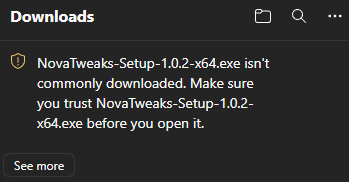
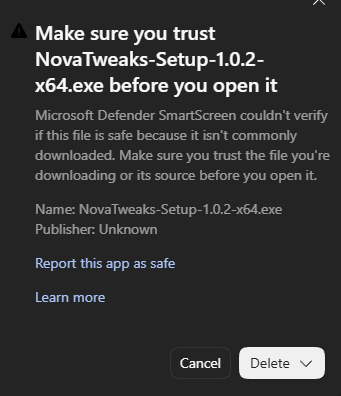
Version 1.1.2 is digitally signed by Open Source Developer Elia Willi Klemenz. Windows has verified the installer's publisher signature. Signing identifies the publisher and lets Windows check that the signed file has not been altered. Edge may still show “isn't commonly downloaded”: SmartScreen also checks download and publisher reputation, which is separate from a valid signature. This particular message does not mean a virus was found. You can check the signature under Properties → Digital Signatures and compare the file with our published SHA-256 checksum. Our source code and release notes are public. If a warning names a specific threat or the signature is invalid, leave the file unopened and share the exact message with us. Microsoft explains download reputation here.
Earlier release: these screenshots show version 1.0.2, before code signing.
Nova Tweaks is maintained by Elia (NovaTweaksDev). The source code, release history, and issue tracker are public on GitHub. You can ask a question or report a problem there.
Create a Nova configuration backup and a Windows restore point before changing settings. You can restore supported changes, but not every tweak can be undone through Nova. Keep a separate backup of important files.
Results depend on your hardware and settings. Compare baseline sessions and frametimes to see what helps your system.
No. The 140+ documented tweaks are a toolkit to choose from. Review the effect, risk, compatibility, and current state, then apply only the changes that suit your setup.
Some changes require administrator access or a restart. Nova documents these requirements per tweak and requests elevation when a supported operation needs it.
Get the installer from the project's GitHub release page.
Read what changed and check the file before running it.